
After creating a project, click Project > Device > AP to enter its AP management interface.
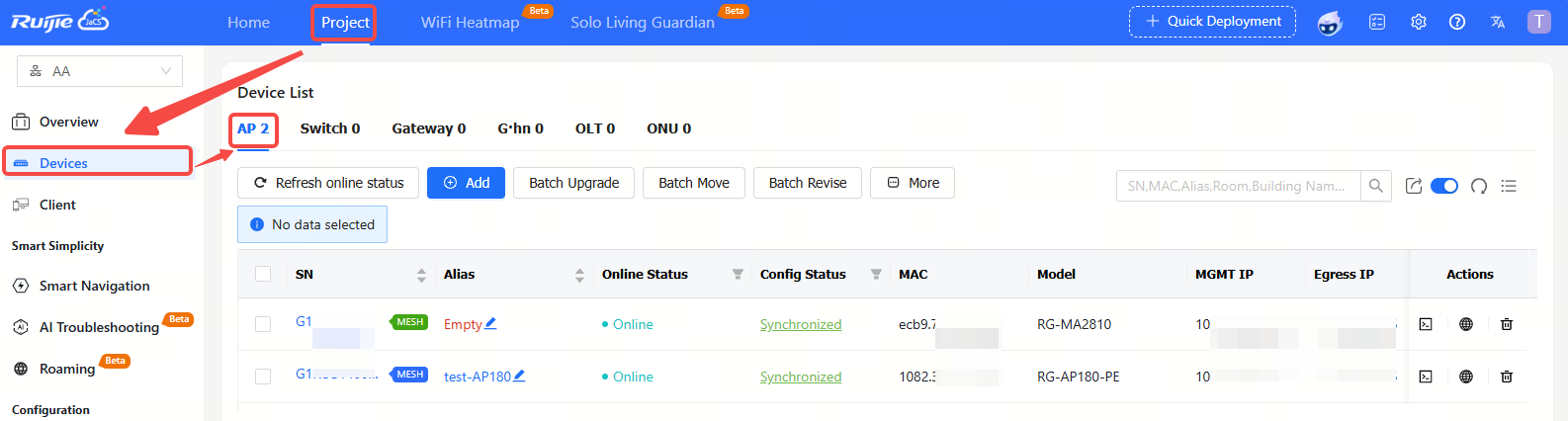
Item Description:
Project Name: Displays the names of the projects where APs reside.
SN: Displays the serial numbers of APs. Click the SN of an AP to display its detailed information.
Online Status: Displays the online status of APs on the cloud. The status of the device includes: Online/Offline/Not Online Yet. Click the filter icon to filter devices by online status.
Config Status: Displays the configuration status of APs. The configuration status includes: Switching mode/Not Synchronized/Synchronizing/Synchronized/Synchronize Failed. Click the filter icon to filter devices according to their configuration status.
MAC: Displays the MAC addresses of APs.
Model: Displays AP models.
Alias: Displays the aliases of APs.
MGMT IP: Displays the management IP addresses of APs.
Egress IP: Displays the egress IP addresses of APs.
Firmware Version: Displays the firmware versions of APs.
Last See On: Displays the last online time of the APs.
Actions: Delete, eWeb and Web CLI buttons are available on the Action column.
Button Description:
 : Add button. Click this button to enter the device adding interface.
 : Upgrade button. After selecting the device, click this button to remotely upgrade the device.
 : Web CLI button. Click this button to enter WEB CLI page to deliver configurations to the device.
 : eWeb button. Select an AP, and click this button to can access the eWeb of the device.
 : Click this button to display more operation buttons, including move to, delete, reboot, set initial settings and restore factory settings.
 : Automatic refresh switch button. The automatic refresh function is enabled by default. When it is enabled, the AP device list will automatically refresh once every minute.
 : Refresh button. Click this button manually to refresh the AP device list.
 : Click this button to customize the displayed items in the AP list.
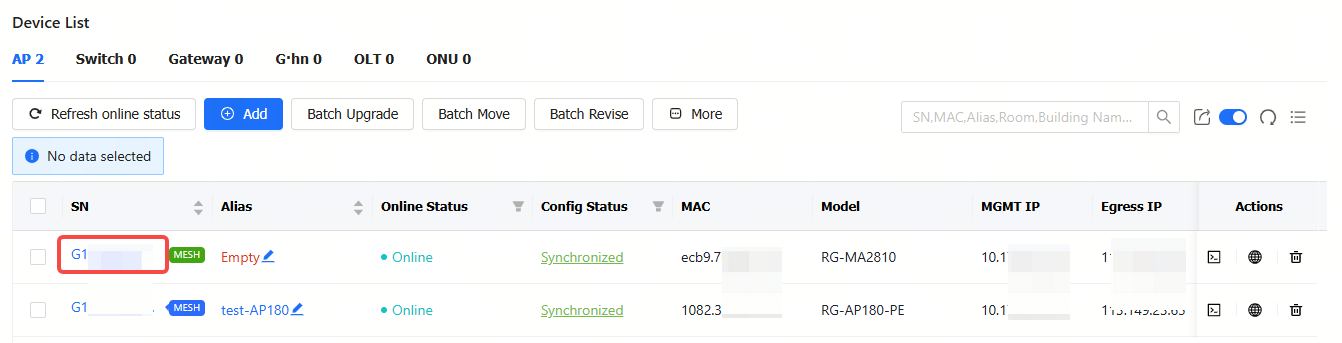
After clicking the SN of a device in the AP list, you can view its details information.
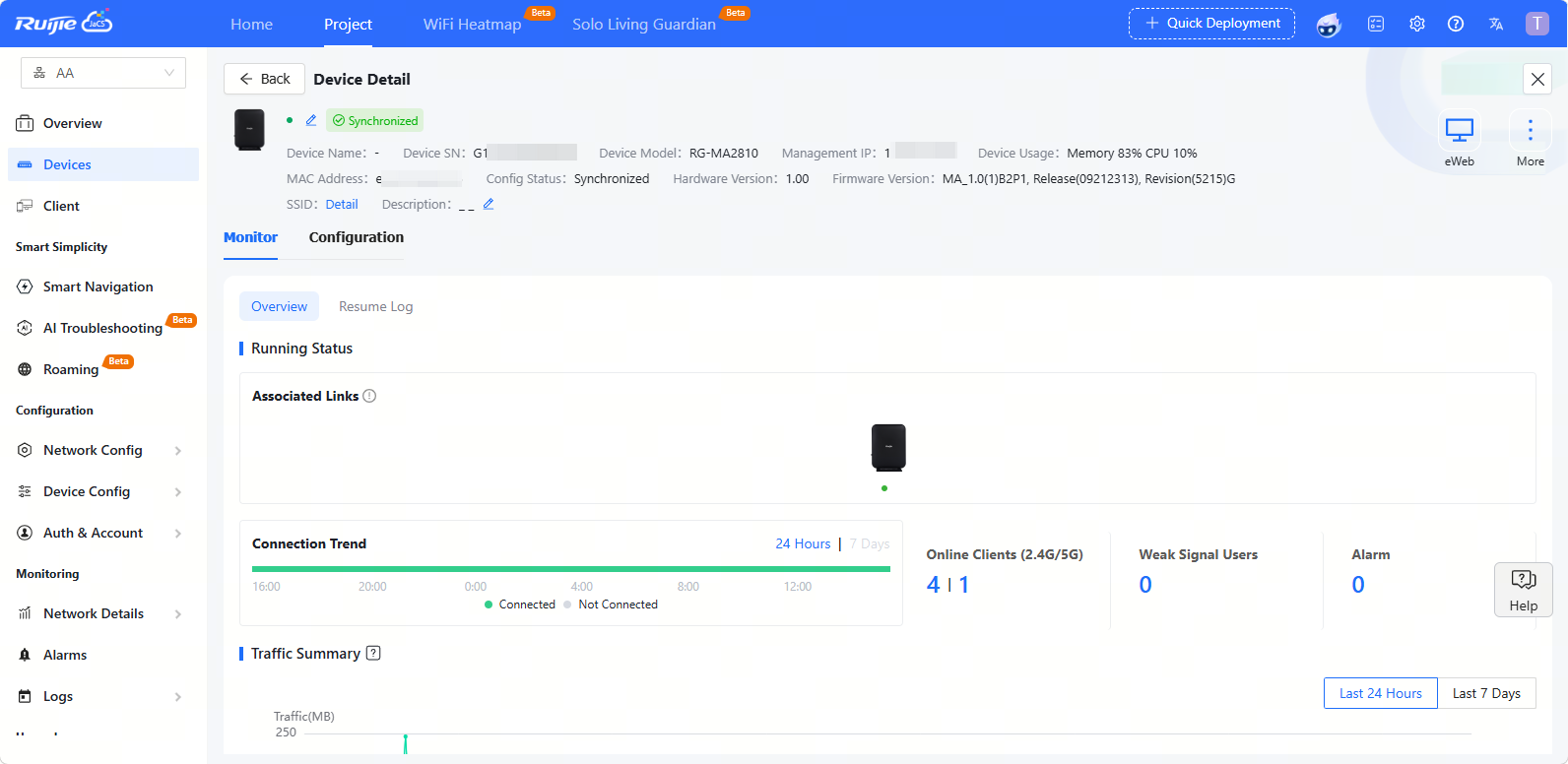
(1)Overview Tab: In this tab, you can view the device's statistics, including running status, traffic information, radio frequency information, client information and adjacent RF signals etc.
(2) Resume log: The logs record all operations on the device.
(3) Radio Configuration: In the tab, you can enable the 2.4G or 5G frequency.
(4) AP Indicator: In this tab, you can enable or disable the AP’s indicators.
(5) eweb Configuration: In this tab, you can set the AP's eWeb password.
(6) Backup Configuration: In this tab, you can back up and export the current configuration of the AP.
(7) Log collection: In this tab, you can collect the device logs.
Note: The tabs displayed in the Device Detail page vary from different device models. Please subject to the actual tabs displayed.
全部评论