
Click Project > Device > Switch to go to the switch management interface. The switch device list will display the information of all switches in the current project by default.
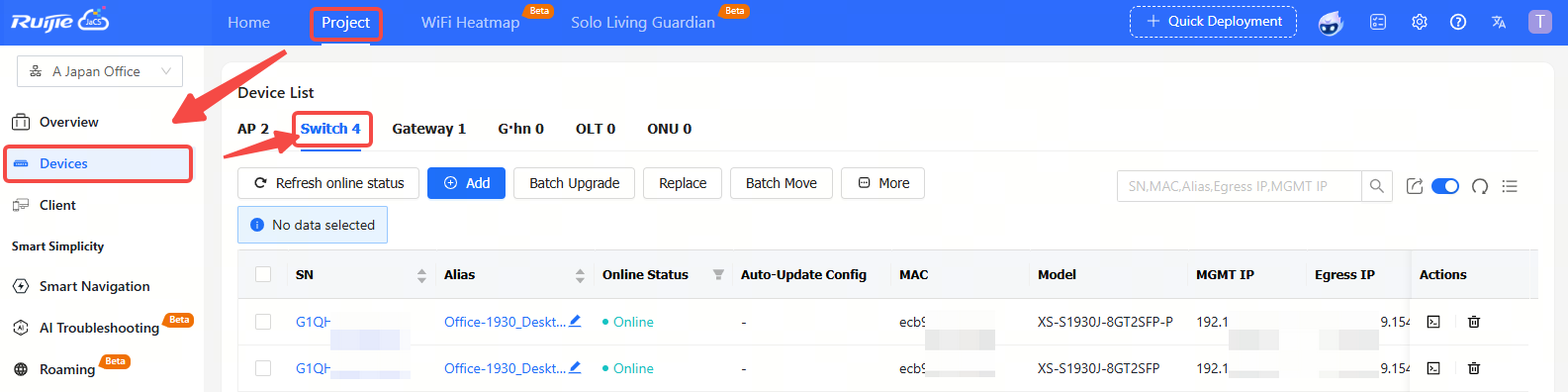
Item Description:
(1) Project Name: Displays the name of the project where the device is located.
(2) Online Status: Displays the online status of the device. The status of the device includes: Online/Offline/Not Online Yet. Click the filter icon to filter devices by online status.
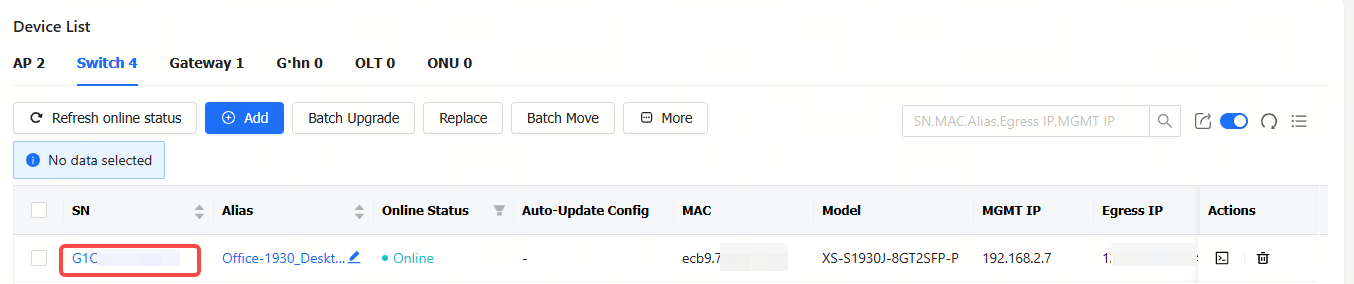
(3) SN: Displays the SN of the device. Click the SN number of a device to view its details.
(4) Configuration Status: Displays the configuration status of the device. Click the filter icon to filter the devices by configuration status.
(5) MAC: Displays MAC information of the device.
(6) Model: Displays device models.
(7) Auto-update config: Provides a switch to enable or disable the function of automatically delivering configurations to XS-S1620J series switches via Ruijie JaCS.
(8) Alias: Displays aliases of devices.
(9) MGMT IP: Displays the management addresses of devices.
(10) Egress IP: Displays egress IP addresses of devices.
(11) Firmware Version: Displays firmware versions of the devices.
(12) Last See On: Displays last online time of devices.
(13) Action: Delete button is available in the Action column. Click the delete button to remove the device from the project.
Button Description
 : Add button. Click this button to enter the device adding interface.
 : Upgrade button.
 : Configuration replacement button. You can synchronize the configuration of an old device to a new one of the same model. After configuration replacement task is created, the configuration of the old device will be sent to the new one when it is online.
 : Click this button to display more operation buttons, including: Delete, and Restart.
 : Automatic refresh button. The automatic refresh button is enabled by default. When it is enabled, the switch device list will automatically refresh once every minute.
 : Manual refresh button. Click this button to manually refresh the switch list.
 : Click this button to customize the displayed items in the switch list.
 : Search box. Supports searching switches by SN, MAC, or alias.
Click the SN of a switch in the switch list to check its detailed information. The detailed interface consists of port panel, basic information, device overview, device port, configuration, PoE, diagnosis and downstream devices.
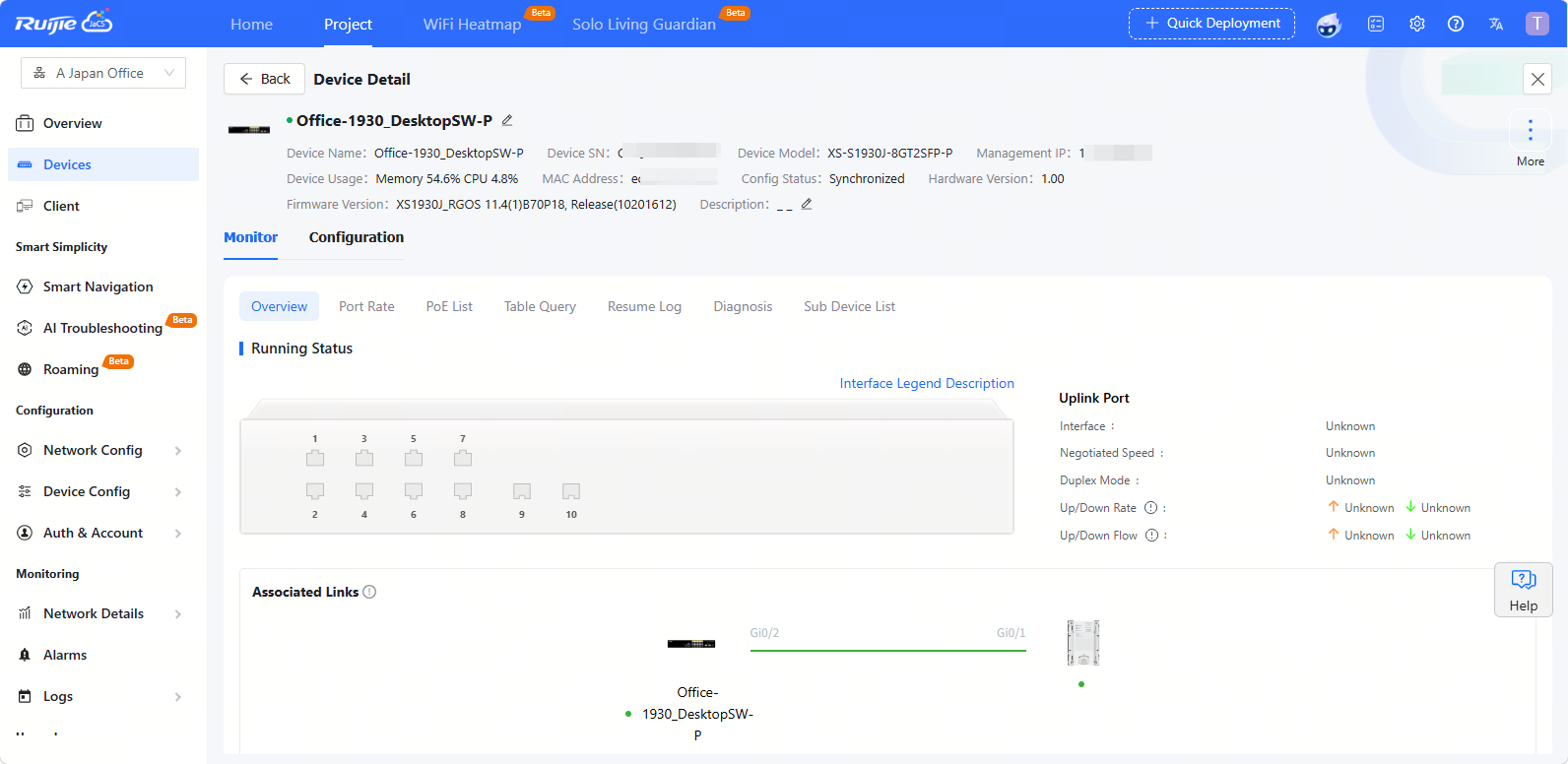
(1) Monitor > Overview > Running Status
The port panel displays the port type, status and speed. When you hover the cursor over a port, you can view its port ID, traffic, rate, type and other information of the port.
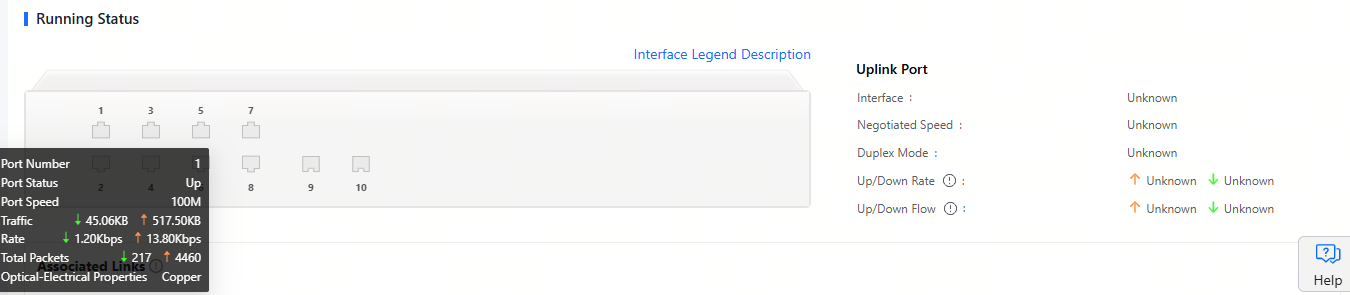
The downlink device connected to the switch is displayed in the Associated Links part. When you hover the cursor over a port, you can view its model, IP address and serial number of the device.

The connection trend displays the connection status of the device in the past 24 hours or seven days.

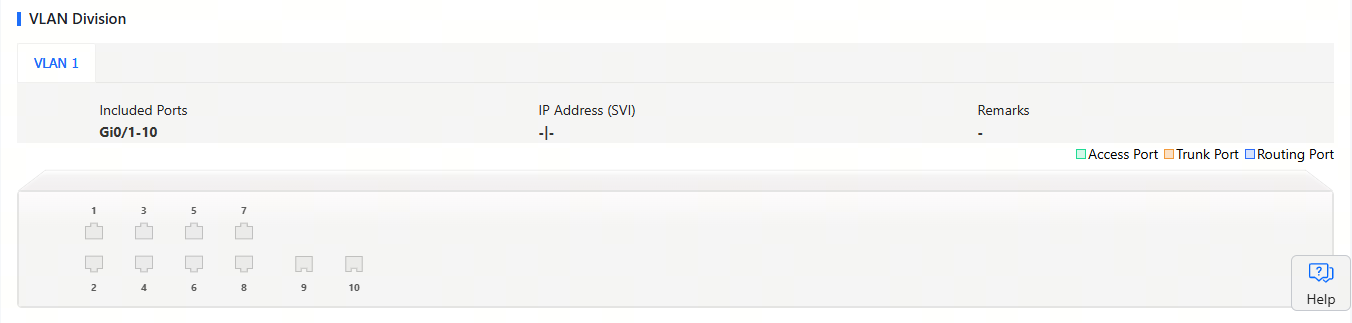
(2) Monitor > Overview > VLAN Division
In this part, you can view the VLAN division information.
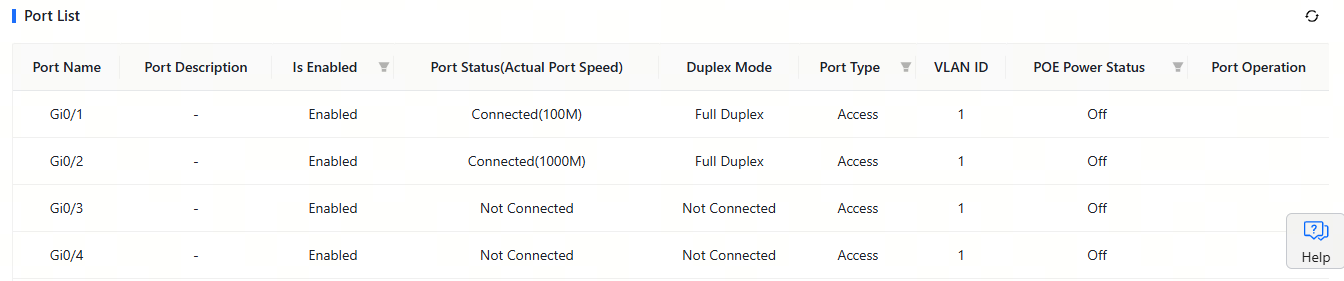
(3) Monitor > Overview > Port List
The port list displays the information of all ports of the device, including port ID, management status, port status, duplex mode, port type, VLAN ID and PoE status.
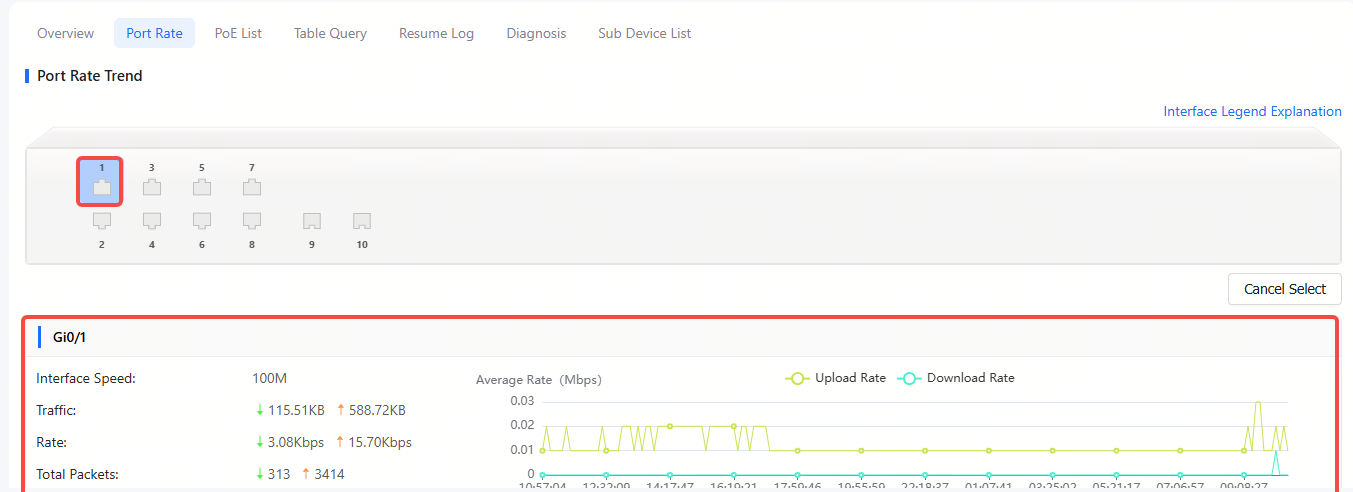
(4) Monitor > Port Rate > Port Rate Trend
Click a port to view its speed, traffic information, uplink/downlink rate and uplink/downlink packets.
(5) Monitor > PoE List
Typically, the PoE interface consists of the PoE Port List, PoE power supply strategy, PoE port policy configuration and Auto Checking. However, the PoE interface may vary slightly depending on the model, so please refer to the actual interface display.
Note: The XS-S1620J series switches only support displaying the PoE Port List and do not support configuring policies to schedule port shutdowns.
Displays the total power and current power.
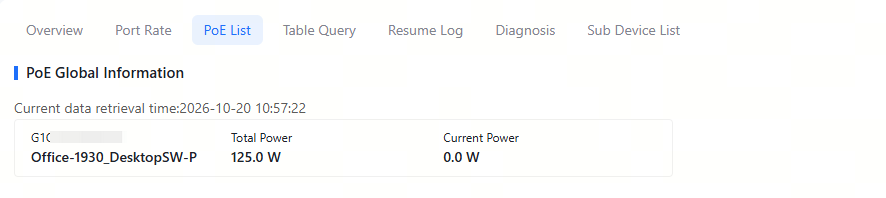
To shut down the PoE port at a specific time:
Step 1: Click Add.

Step 2: Set the policy name and specify the time period.
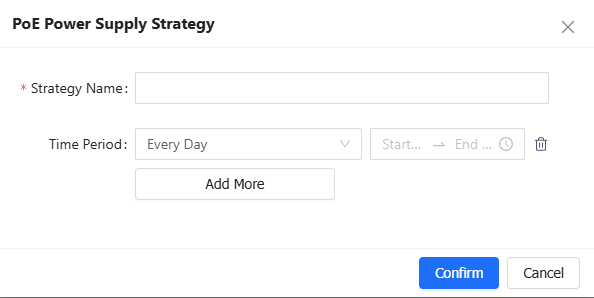
(1) Strategy Name: (Required) Set the policy name.
(2) Time Period: (Required) Set the time period.
(3) + Add More: Click it to set multiple time periods.
Step 3: Click Confirm.
Click the edit icon in the Action column to modify the priority, maximum power, and power supply stop policy.

After the PoE self-check function is enabled, the system will automatically detect the configured ports. When the PD device is detected to be offline, a trap notification is sent by default; if the reboot-remote-pd option is configured, it will automatically restart the PD device.

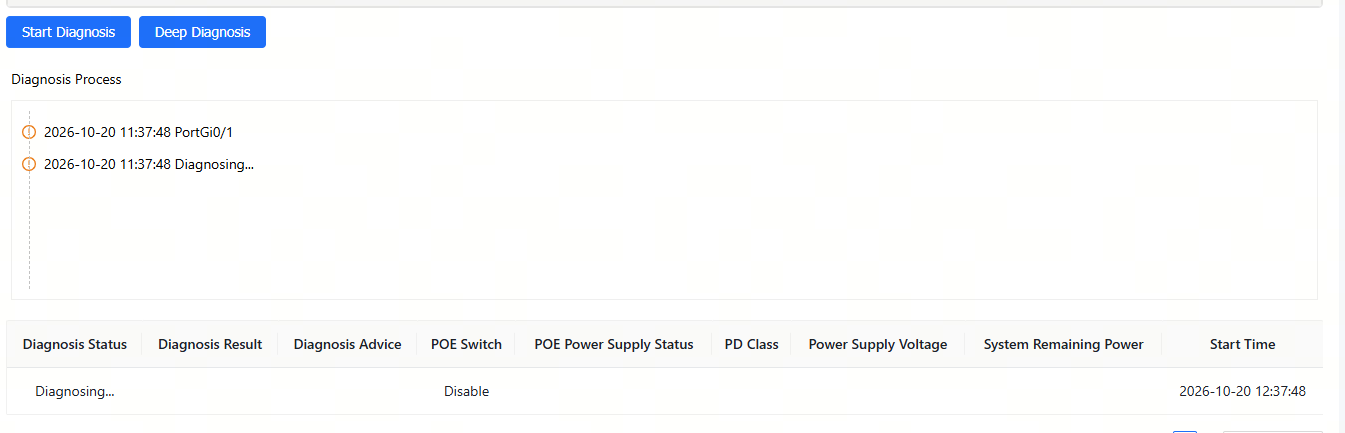
(6) Monitor > Diagnose
Supports port fault detection. The specific steps are as follows:
Step 1: Select the type.
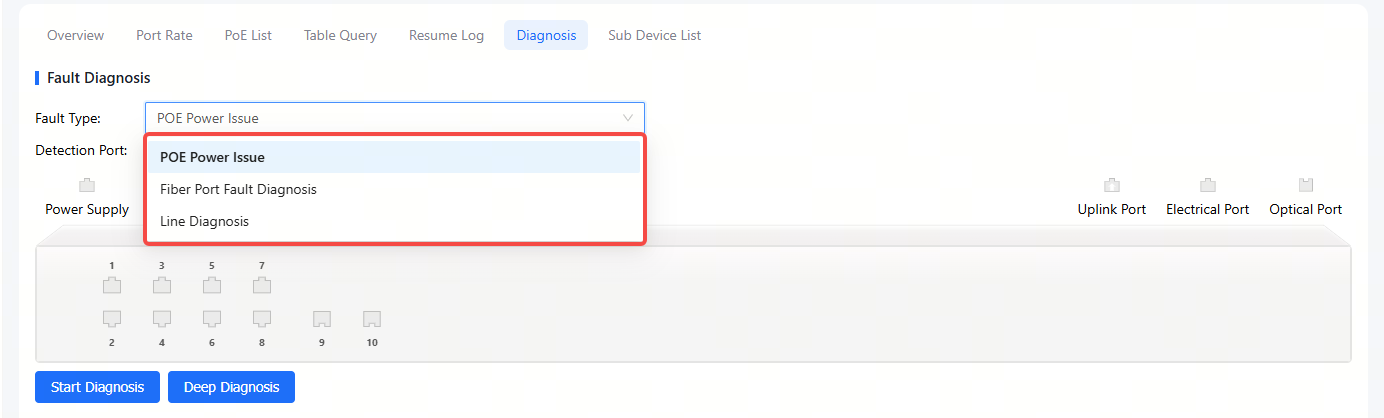
Step 2: Select the port to be diagnosed on the panel and click Start Diagnosis or Deep Diagnosis.
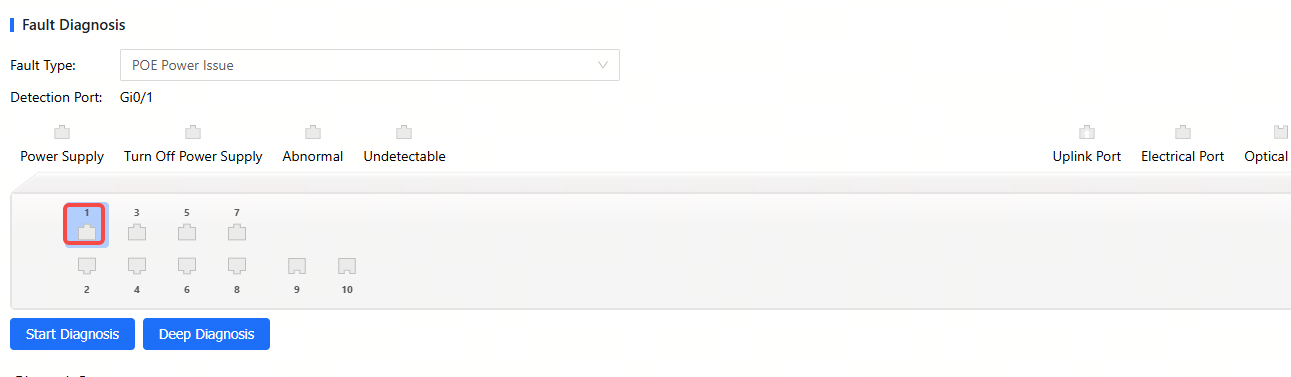
Diagnose Type:
Diagnose: The cloud server sends CLI commands to collect switch information, and the diagnosis is performed on the cloud server.
Deep Diagnose: Diagnostics are performed on the switch and the results are reported to the cloud server.
Step 3: Waiting for the diagnosis result.
(7) Configuration Tab
Note: The configuration tab of the XS-S1620J series switches contains only the VLAN List and Configuration Backup List. Additionally, the VLAN List only supports viewing the current VLAN IDs and their corresponding port numbers; adding new VLAN IDs is not supported.
Supports configuring the port administrative status, duplex mode, speed, description, PoE, port type, and VLAN ID. After completing the configuration, click "Save".
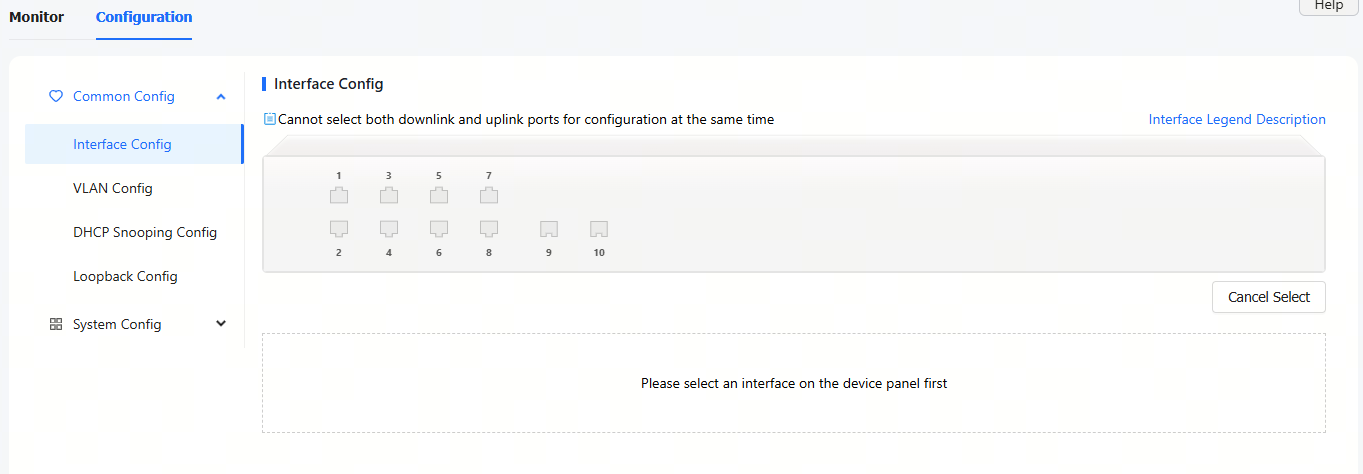
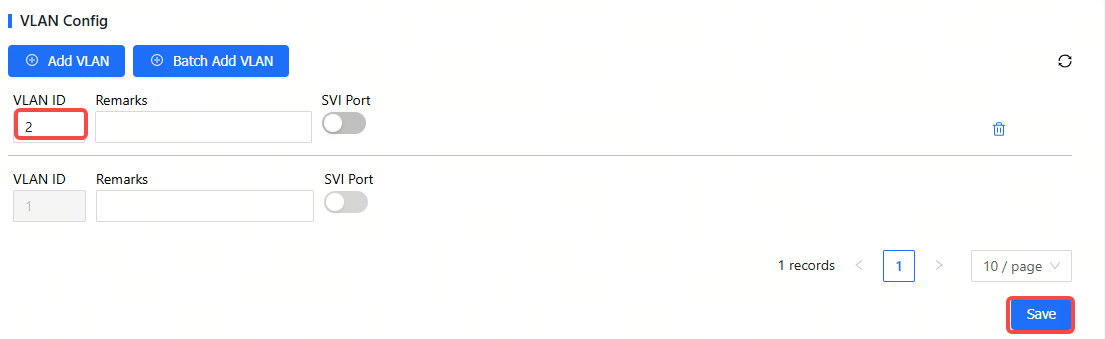
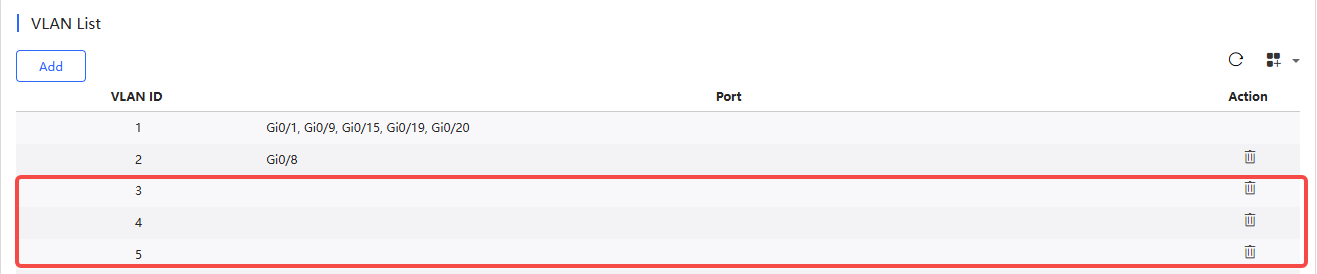
VLAN List displays the current VLAN ID and the corresponding port number. Click Add to add a VLAN ID.
The specific steps are as follows:
① Click Add VLAN.

② Enter the VLAN ID, and click Save.
To add VLAN ID in batches:
① Click Batch Add VLAN, and click OK.
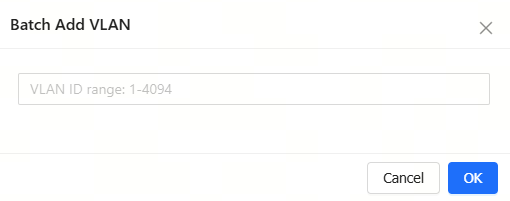
Two methods are provided for you to add multiple VLAN IDs:
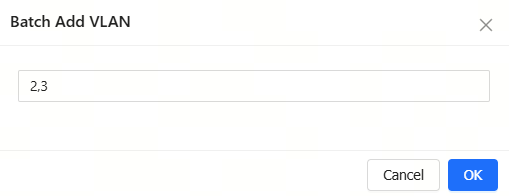
Method 1: Use commas (,) to separate VLAN IDs. Up to 10 VLAN IDs can be created at one time.
Method 2: Use dashes (-) to separate VLAN IDs. This method can be used to create VLANs in batches without any quantity limit, as long as the VLAN range is within 1-4094.
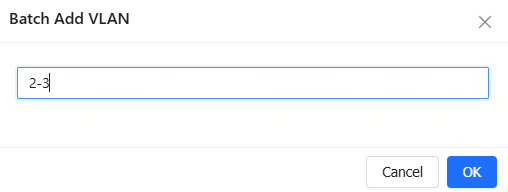
Note: Commas and dashes cannot be used together.
③ After setting the VLAN IDs, click OK. When the "Added succeeded" prompt appears, the operation is completed. The created VLAN ID will be displayed in the VLAN list. To delete a VLAN ID, click the delete icon in the Action column.
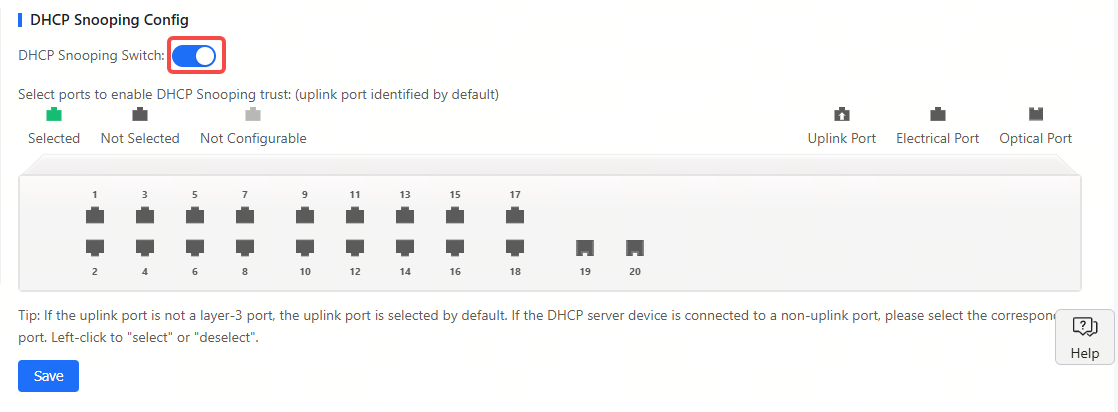
DHCP Snooping is disabled by default. After enabling it, select a port and click Save. If the selected port is not a routing port, the uplink port is selected by default. If the port connected to the DHCP server is not an uplink port, you need to select it manually.
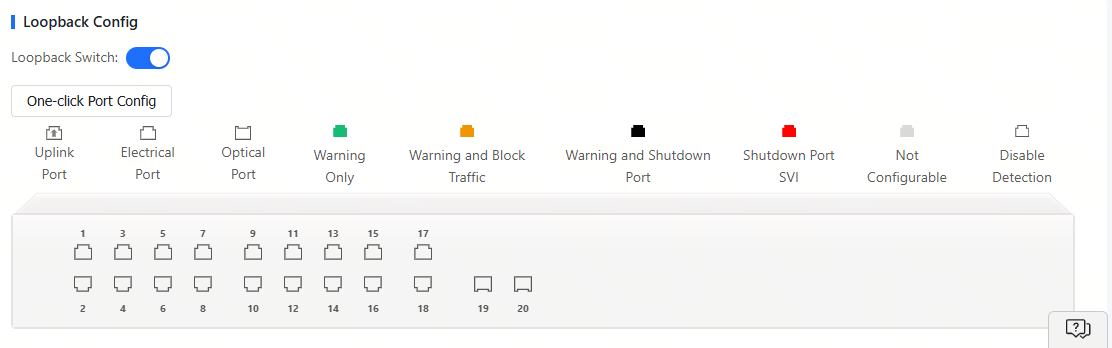
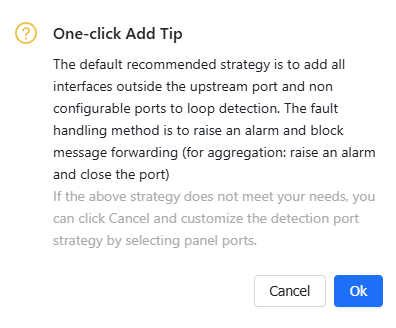
Click One-click Port Config to display the system-recommended policy. After confirming that you want to use this policy, click OK.
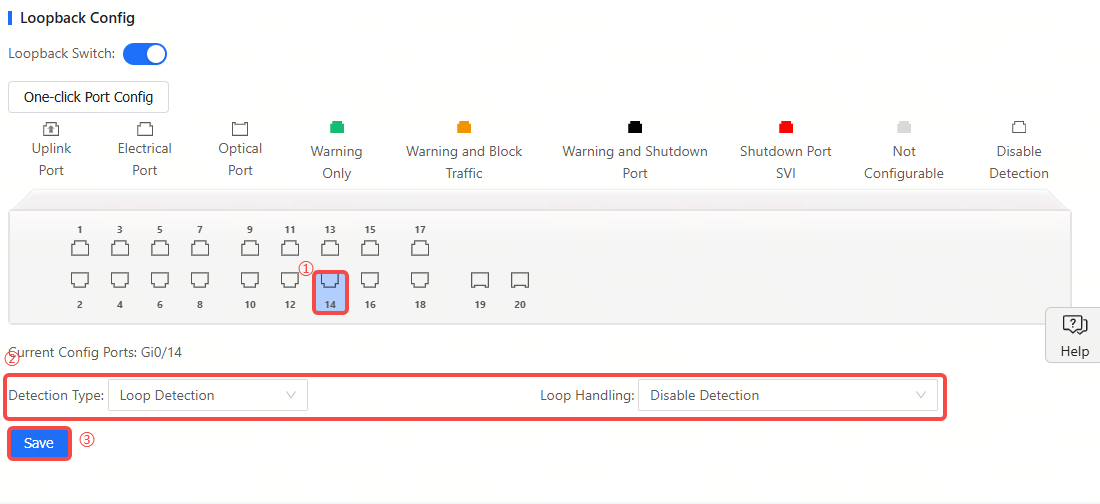
If the system-recommended policy does not meet your requirements, you can manually configure the policy for the ports.
(8) Configuration Backup List
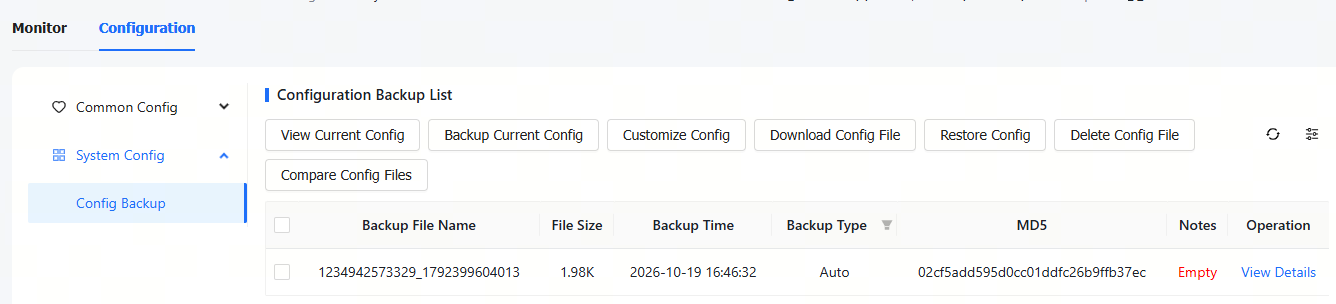
Supports backing up configuration. The information displayed in the backup list includes configuration file name, file size, time, mode, MD5 and description.
Button Description:
(1) View Current Config: Click this button to display the current configuration of the device. If you want to back up the configuration, click Backup in the Config Details interface. After backup, click to refresh the list, and the backed up file will be displayed in the list.
(2) Backup Current Config: Click this button to back up the current configuration of the device. When the operation confirmation box appears, click OK. After backup, click to refresh the list, and the backed up file will be displayed in the list.
(3) Customize Config: Configuration file customization button. Select one of the files in the Configuration Backup List, and then click this button to modify the configuration. After setting the file name and changing the configuration, click Save to complete the operation.
(4) Download Config File: Configuration file download button. Select a configuration file in the Configuration Backup List, and click Download to download the configuration file. When the operation confirmation box appears, click OK. Only one configuration file can be downloaded at a time.
(5) Restore Config: Backup file restore button. Check a configuration file and click Restore to restore the current configuration file of the device to the selected configuration file. Only one file can be restored at a time.
(6) Delete Config File: Delete button. Select a configuration file to be deleted, click Delete, and when the operation confirmation box appears, click OK to delete the configuration file.
(7) Compare Config File: Comparison button. Select two configuration files to be compared and click Compare to compare the two profiles to find out their differences.
(8) View Details: Click this button in the Action column to view the detailed configuration of a file.
(9) Notes: Click the words in the Notes column to modify the profile description.
全部评论