
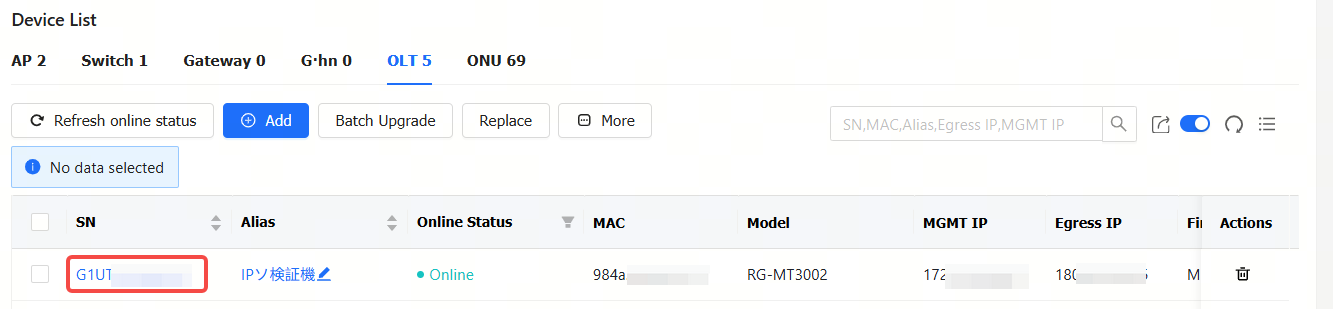
Click Project > Device > OLT to enter the OLT management interface. Click the SN of an OLT in the list to view its detailed information.

Item Description:
(1) SN: Displays the SNs of OLTs. Click the SN of an OLT to view its details information.
(2) Alias: Displays the aliases of OLTs.
(3) Online Status: Displays the online status of the OLT. The online status of the device includes: Online/Offline/Not Online Yet. Click the filter icon to filter the OLTs by online status.
(4) MAC: Displays MAC addresses of OLTs.
(5) Model: Displays OLT models.
(6) MGMT IP: Displays the management addresses of OLTs.
(7) Egress IP: Displays the egress IP addresses of OLTs.
(9) Firmware Version: Displays the firmware versions of OLTs.
(10) Last See On: Displays the last online time of OLTs.
(11) Create Time: Displays the time when an OLT connected to the JaCS.
(12) Action: Click the Delete button in the Action column to remove the device from the project.
Button Description:
 : Add button. Click this button to go to the adding interface.
 : Upgrade button. After selecting the device, click this button to remotely upgrade the device.
 : Configuration replacement Button. You can synchronize the configuration of the old device to a new device of the same model. After configuration, when the new device is online, the configuration of the old device will be sent to it automatically.
 : Click this button to display more operation buttons, including Move to, Delete, Restart, and Tunnel.
 : Automatic refresh button. When it is enabled, the OLT device list will automatically refresh once every minute.
 : Refresh button. Click this button manually to refresh the OLT device list.
 : Click this button to customize the displayed items in the OLT list.
 : Search box. Supports searching an OLT by its MAC, SN, alias, egress IP and MGMT IP.
Click the SN of a OLT device to go to device detail page.
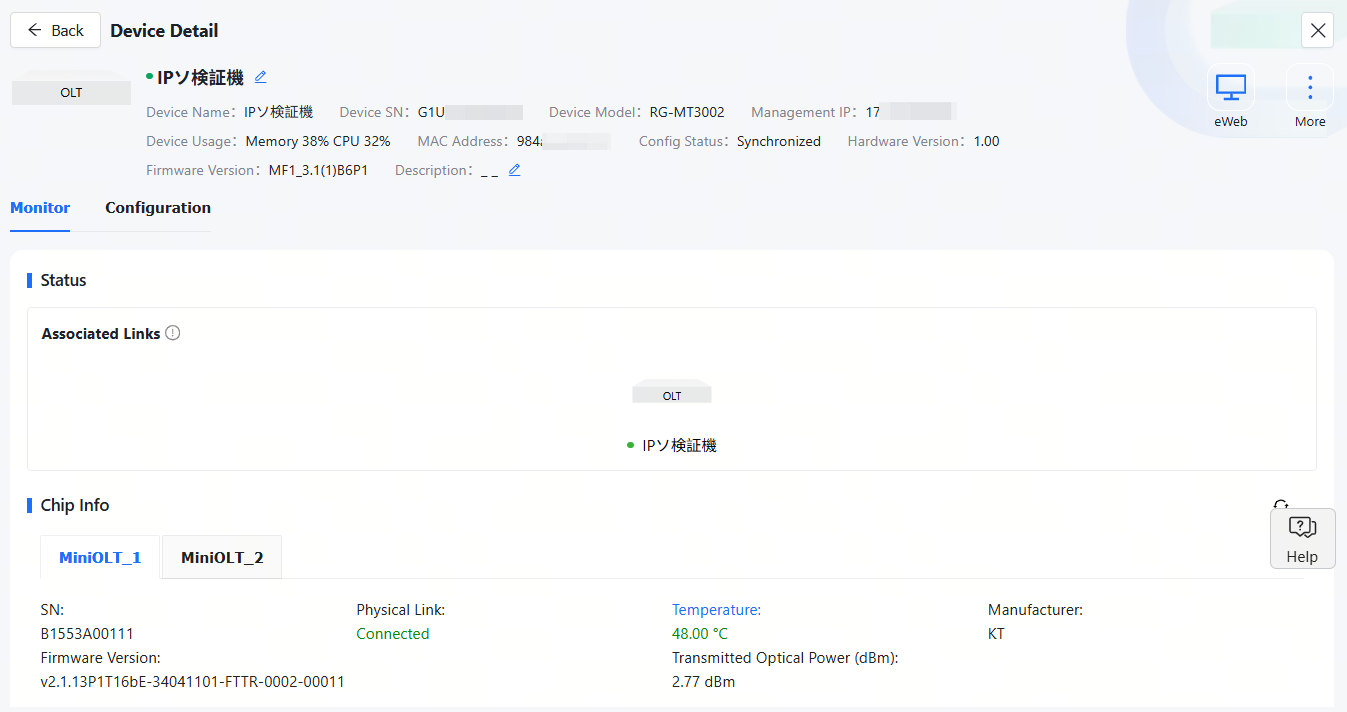
(1) Device Detail
The Device Detail displays the device’s SN, MAC address, MGMT IP address, memory/CPU usage, model, hardware version, firmware version, alias and description.

(2) Overview Tab
The Overview tab consists of four parts: Status, Chip Information, Ethernet Module Information and Download Device List.
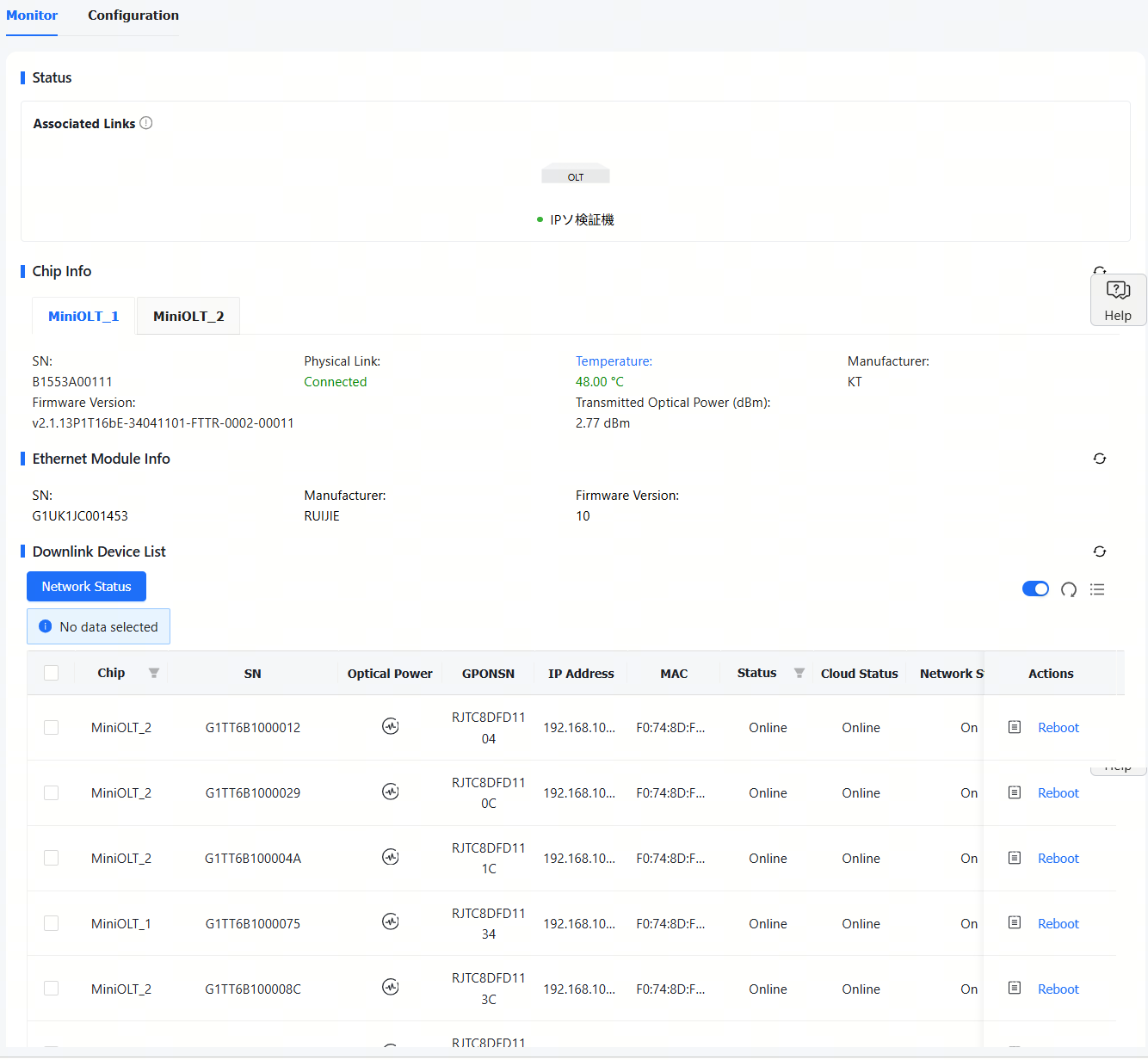
In the Download Device List, you can change the network status of its downlink devices.
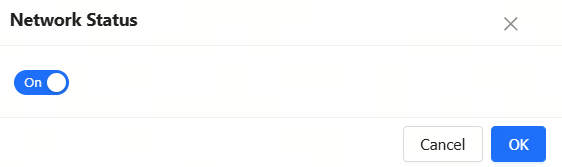
To change the network status of its downlink devices:
① Select a downlink device, and then click Network Status.

② Change the status and click OK.
(3) Configuration Tab
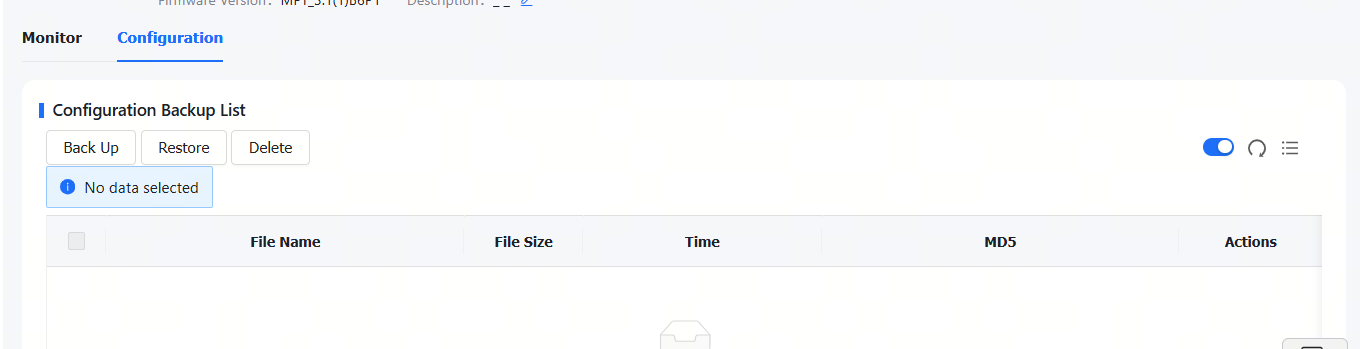
Buttons:
(1) Back Up: Click this button to back up the configuration of the OLT device.
(2) Restore: Select a backup configuration file and then click this button to restore the device to the selected configuration backuped.
(3) Delete: Select a configuration file and then click Delete to delete it.
(4) Details: Click Details in the Action column to view the details of the configuration.
全部评论